Tutorials · DETECTION
How to Detect Streaming URLs on Windows
Find HLS / M3U8 / DASH playlist URLs on Windows without copying from Chrome DevTools. Detect the stream, then download it.
The hard part of saving a stream is often not the download. It is finding the URL. The page plays. The address bar is useless. Chrome’s Network panel is a wall of requests. This tutorial is the Windows path: detect the streaming URL, then download it.
HiDownload’s built-in sniffer does the detection. You do not have to filter by m3u8 in DevTools unless you want to. After a playlist appears, the rest is the usual workflow: select, download, play or convert.
Only save content you have the right to keep. Encrypted / DRM streams cannot be detected into a usable file.
What a streaming URL looks like
It is rarely the webpage you copied from the browser.
| URL kind | Typical hint | What it is |
|---|---|---|
| HLS playlist | .m3u8 |
HTTP Live Streaming manifest |
| DASH manifest | .mpd |
MPEG-DASH |
| Segment | .ts / .m4s |
One chunk; you want the playlist that lists them |
| Progressive file | .mp4 |
Sometimes a real file; often not the adaptive stream |
If you save a single segment, you get a few seconds. If you save the playlist, a downloader can walk every segment.
Why DevTools copy-paste is fragile
The usual article says: F12 → Network → filter m3u8 → copy → paste into FFmpeg.
That fails when:
- The playlist includes a short-lived token.
- Ads and the real programme both appear as
.m3u8. - Audio is a second playlist.
- The URL expires before you finish typing
ffmpeg -i.
HiDownload watches the same kind of requests inside its session and lists candidates while the video is still playing. How to Download Videos Without DevTools is the companion page if your only goal is to skip Inspect Element.
Step-by-step: detect the stream URL
1. Open the page you are allowed to save
Install HiDownload on Windows 10 or 11. Open the player page in the app’s workflow, not only in an external browser, so the sniffer can see the requests.
2. Play the video
Detection needs traffic. Let the stream run for several seconds. Live events need a longer sample.
3. Read the detection list
Look for .m3u8 or .mpd. Prefer the row whose size grows as the picture continues. Ignore tiny playlists that stop after an advert.
4. Select video and audio if they are split
HLS often lists audio as a separate rendition. If a download is silent, you likely saved video only. Download both, then preview.
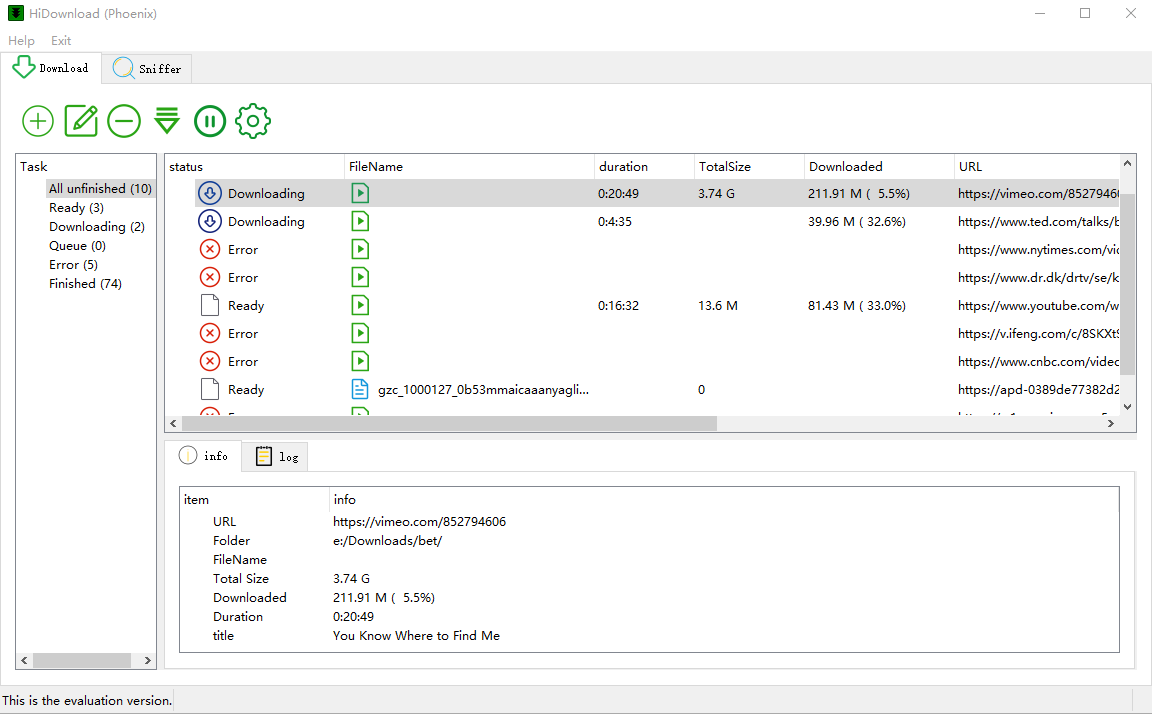
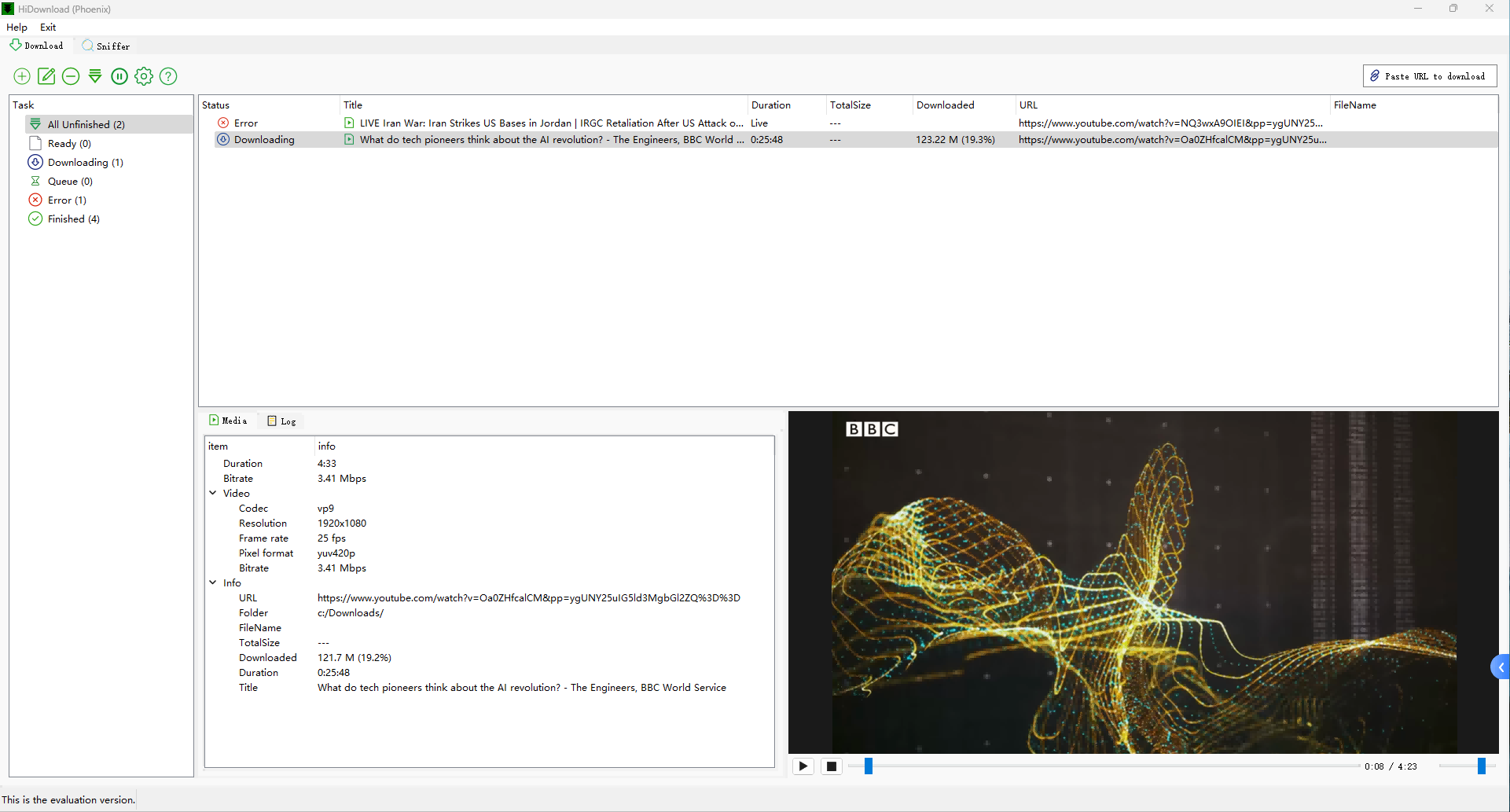
5. Download, then preview
Queue the job. When it finishes, play it in the built-in player. Convert to MP4 if you need a standard file.
How to find an HLS playlist URL
HLS URLs are typically .m3u8 files that act as a manifest for adaptive streaming. To locate them:
- Browser inspection: Use DevTools or HiDownload’s sniffer to capture requests. Filter for
.m3u8. - Playback monitoring: Start playback in HiDownload and let the sniffer analyze traffic. Look for
.m3u8entries in the detection list. - Live streams: Wait for the main playlist to appear after pre-roll ads or loading screens. HiDownload’s session monitoring ensures you don’t miss it.
- Tokenized URLs: If the playlist contains tokens, download immediately to avoid expiration.
HiDownload simplifies this process by eliminating manual filtering and ensuring you capture the correct playlist.
After you have the URL
- HLS / M3U8 — continue with HLS Downloader for Windows or How to Download HLS Streams.
- DASH / MPD — DASH Downloader for Windows.
- Any supported stream — Stream Downloader for Windows.
If you already pasted a playlist URL and the job fails, the link may have expired. Detect again while the video is playing instead of reusing yesterday’s copy.
When the list stays empty
- Play the video; a paused player sends nothing.
- Wait out a pre-roll; the real playlist may appear later.
- Check for DRM. A protected player will not hand you a clear playlist.
- Embedded iframes may load media in another context. Open the inner player if you can.
The Stream URL Sniffer for Windows page explains how the detector differs from classic URL Snooper tools and from a raw network capture.
Legal note
Detection is not permission. Archive webinars, courses, and recordings you are allowed to keep. Do not use a sniffer to bypass paywalls or DRM.
See the workflow
Frequently asked questions
Download HiDownload for Windows
Detect M3U8, HLS, and DASH streams, then download, play, or convert — no command line.
Only save content you have the right to keep. HiDownload does not bypass DRM.