★★★★★
The built-in sniffer finds .m3u8 links quickly and merged files play fine in VLC. A game changer for my online courses.
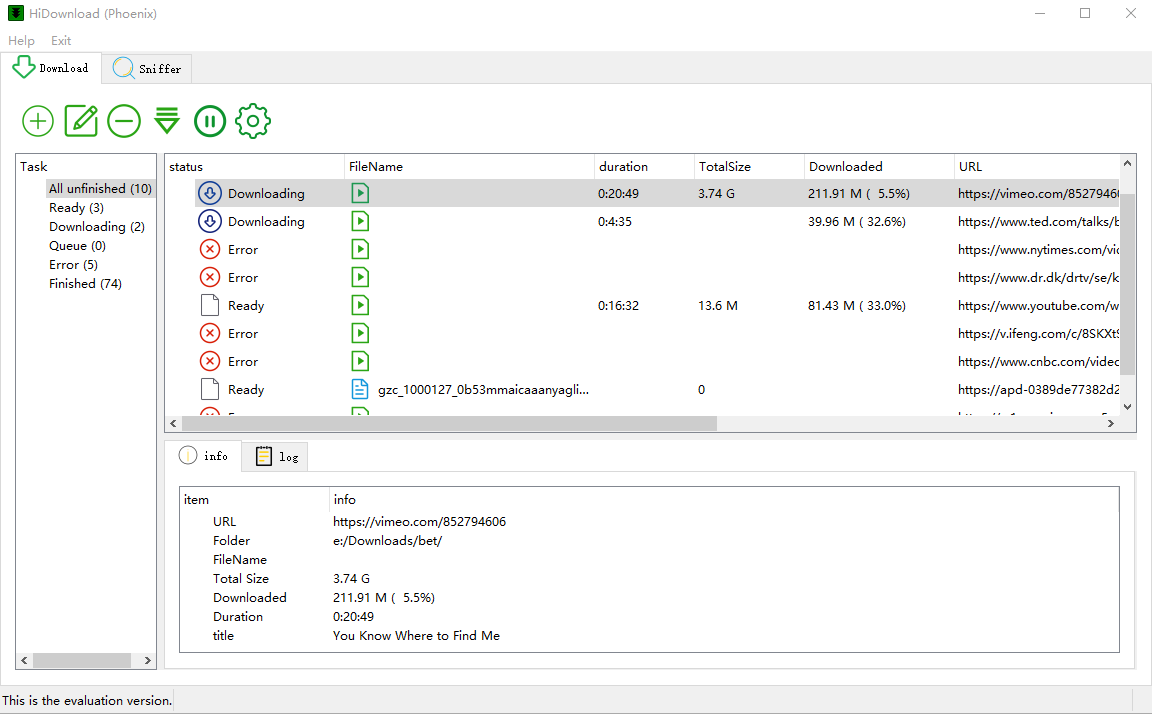
Everything you need to download and save streaming content.
No ads, no trackers. Your data stays on your device.
Three simple steps to save any stream or video.
Open the page and play the video or live stream in HiDownload.
HiDownload detects M3U8, HLS, DASH and MP4 links—click to capture.
M3U8, HLS, DASH, live streams and more.
See what users say about HiDownload (Phoenix).
The built-in sniffer finds .m3u8 links quickly and merged files play fine in VLC. A game changer for my online courses.
We capture permitted sports replays in high quality. Live HLS jobs run smoothly until the broadcast ends.
The stream URL sniffer is amazing—finds hidden DASH links other tools miss. Simple enough for our whole IT team.
Free download for Windows. No subscription required to get started.