Produit · M3U8
Téléchargeur M3U8 pour Windows
Téléchargez des vidéos M3U8 / HLS sur Windows. HiDownload détecte les playlists, enregistre les segments et convertit en MP4 — sans ligne de commande.
Le navigateur lit la vidéo. Il n'y a pas de Enregistrer la vidéo sous. Le clic droit ne fait rien d'utile. La barre d'adresse affiche une page web normale, pas un fichier .mp4.
Cela signifie généralement que le lecteur ne sert pas un seul fichier. Il lit une playlist M3U8 et récupère des dizaines ou centaines de petits segments en arrière-plan.
HiDownload est un téléchargeur de flux pour Windows conçu pour ce cas : détecter la playlist, télécharger les segments et enregistrer un fichier que vous pouvez lire ou convertir — sans ouvrir un terminal.
Pourquoi “Enregistrer la vidéo sous” échoue sur les pages M3U8
Un MP4 progressif se trouve sur un serveur comme un seul objet. Le navigateur peut le télécharger.
Un lecteur HLS fonctionne différemment :
- La page charge un lecteur JavaScript.
- Le lecteur demande une playlist maître
.m3u8. - Cette playlist pointe vers plusieurs variantes de qualité (360p, 720p, 1080p).
- Chaque variante est une autre playlist de segments
.tsou.m4s. - Le lecteur récupère les prochaines secondes pendant que vous regardez.
Rien dans cette chaîne n'est “le fichier vidéo.” Le navigateur n'a donc rien à enregistrer.
C'est pourquoi les gens recherchent un téléchargeur M3U8 au lieu d'un téléchargeur vidéo générique. La tâche est consciente de la playlist : lire le manifeste, choisir une variante, récupérer chaque segment, puis fusionner.
Ce qu'est réellement un fichier M3U8
M3U8 est une playlist texte UTF-8. C'est le format de manifeste utilisé par HLS (HTTP Live Streaming).
Une playlist média typique ressemble à ceci :
#EXTM3U
#EXT-X-TARGETDURATION:6
#EXTINF:6.0,
segment001.ts
#EXTINF:6.0,
segment002.ts
#EXT-X-ENDLIST
Une playlist maître est un niveau supérieur. Elle répertorie les débits et résolutions, chacun avec sa propre sous-playlist.
Si vous ne sauvegardez que le fichier texte .m3u8, vous n'avez pas la vidéo. Vous avez une liste de courses. Un téléchargeur doit parcourir cette liste.
M3U8 est la playlist ; HLS est le protocole qui l'utilise. Les deux termes apparaissent dans les mêmes recherches, mais ils ne sont pas identiques.
HiDownload traite M3U8 comme un type de flux de première classe, et non comme un cas particulier nécessitant un script.
Méthodes traditionnelles pour télécharger M3U8 (et pourquoi elles échouent)
Ces méthodes fonctionnent. Elles expliquent également pourquoi un outil avec interface graphique existe.
Outils de développement du navigateur
Ouvrez DevTools → Réseau, lisez la vidéo, filtrez par m3u8, copiez l'URL de la requête, puis utilisez un autre outil.
Problèmes :
- L'URL de la playlist peut expirer ou inclure un jeton.
- Les publicités et la vraie vidéo apparaissent toutes deux comme
.m3u8. - L'audio et la vidéo peuvent être deux playlists.
- Vous avez toujours besoin d'un second programme pour récupérer les segments.
FFmpeg en ligne de commande
ffmpeg -i "https://example.com/index.m3u8" -c copy output.mp4
C'est puissant. C'est aussi la raison pour laquelle de nombreux articles “comment télécharger M3U8” cessent d'être utiles : les en-têtes, les cookies, le direct contre la VOD et l'audio séparé deviennent autant d'options à mémoriser pour chaque site.
yt-dlp et autres téléchargeurs CLI
Excellents pour les personnes habituées au terminal. Peu adaptés à quelqu'un qui veut simplement archiver un webinaire ou un cours qu'il est autorisé à conserver.
Si vous voulez éviter le terminal, HiDownload est conçu pour cela : détecter la playlist, la sélectionner et télécharger.
Comment HiDownload télécharge M3U8 sur Windows
Le flux de travail est le même que la page utilise HLS, un lecteur caché ou une iframe intégrée :
Ouvrir → Détecter → Sélectionner → Télécharger → Lire ou convertir
- Ouvrez la page (ou collez l'URL du média) dans HiDownload.
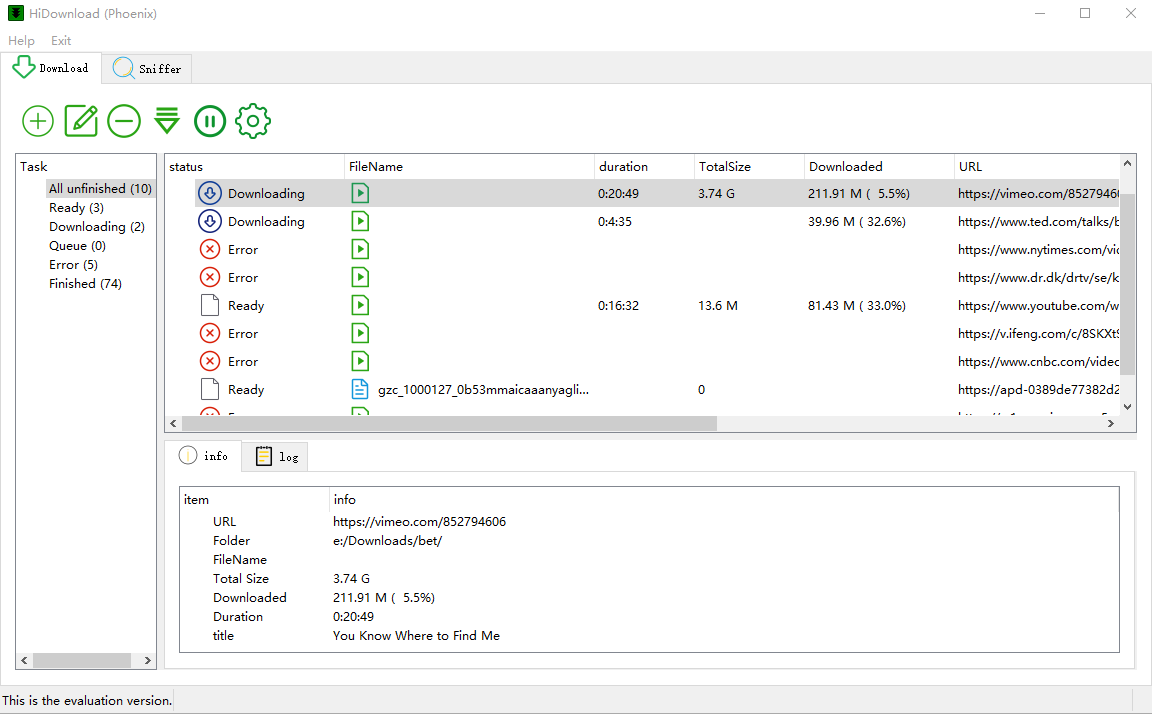
- Le détecteur intégré répertorie les vraies URL médias :
.m3u8,.mpd,.mp4, et autres. - Sélectionnez la playlist qui grandit pendant que la vidéo joue — c'est généralement le vrai flux, pas une publicité de 5 secondes.
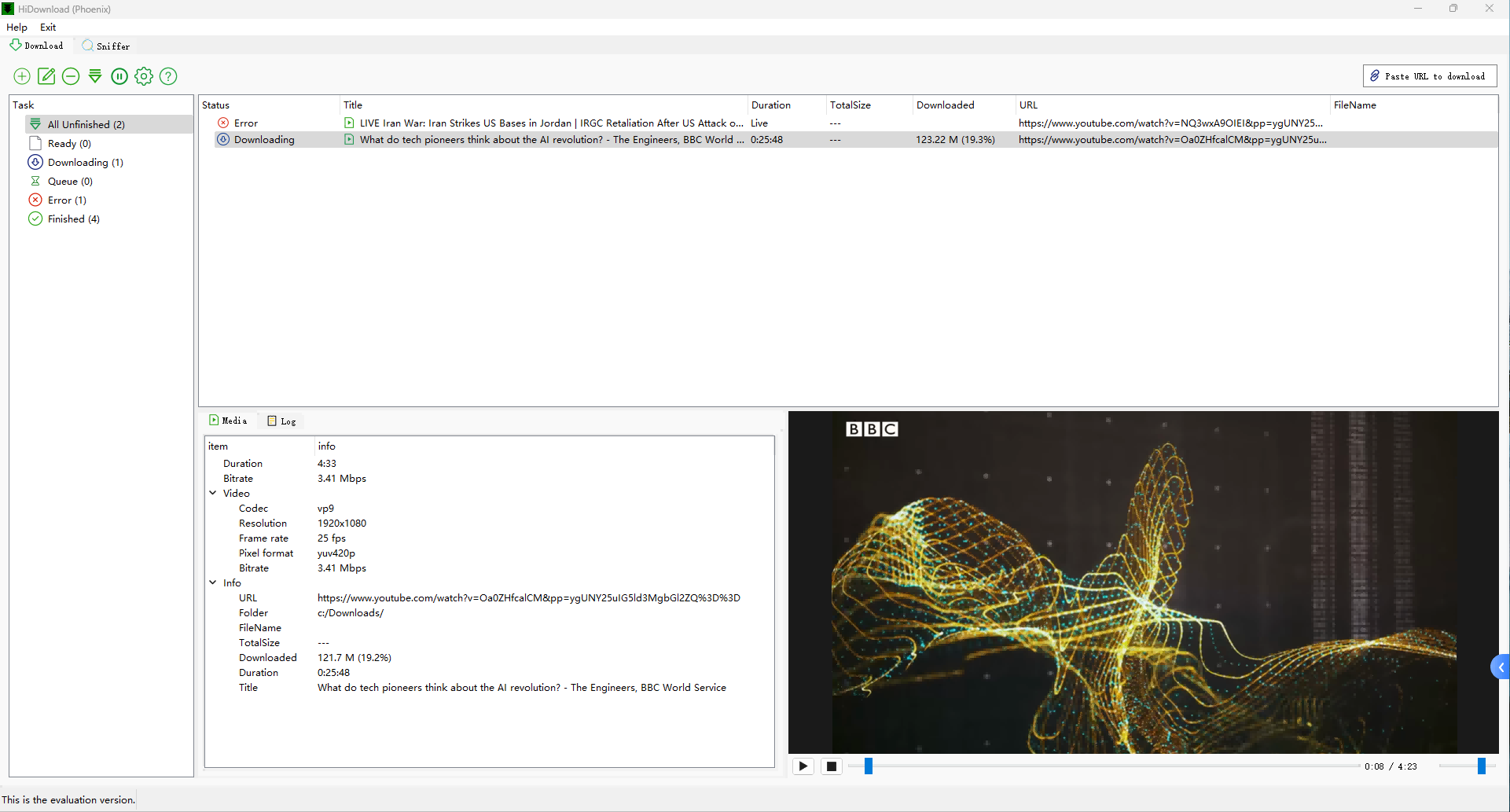
- Lancez le téléchargement. HiDownload récupère les segments et écrit un fichier local.
- Prévisualisez dans le lecteur intégré ou convertissez en MP4 / autres formats.
Vous ne collez pas de paramètres FFmpeg. Vous ne parcourez pas 200 lignes de Réseau à moins de le vouloir.
C'est la différence produit : le téléchargement M3U8 est un flux de travail de bureau, pas une commande.
Comment télécharger une vidéo M3U8 avec HiDownload
Étape 1 — Installez HiDownload sur Windows
Téléchargez la version Windows et installez-la. L'application est conçue pour Windows 10 / 11 (64 bits).
Étape 2 — Ouvrez la page qui lit la vidéo
Utilisez le navigateur intégré ou ouvrez le site que vous avez déjà la permission de sauvegarder (votre cours, la rediffusion de votre webinaire, un flux que vous êtes autorisé à enregistrer).
Étape 3 — Lancez la détection
Lisez la vidéo pendant quelques secondes. Le détecteur a besoin que le lecteur demande la playlist.
Étape 4 — Sélectionnez la ligne M3U8
Recherchez .m3u8 dans la liste détectée. Si plusieurs lignes apparaissent :
- Préférez la ligne dont la taille transférée augmente à mesure que la vidéo continue.
- Ignorez les playlists très petites qui se terminent immédiatement (souvent des publicités ou des aperçus).
- Si vous voyez une playlist maître et une playlist variante, la variante correspondant à la qualité souhaitée est généralement la bonne.
Étape 5 — Téléchargez, puis lisez ou convertissez
Mettez la tâche en file d'attente. Une fois terminée, ouvrez le fichier dans le lecteur intégré. Si vous avez besoin d'un fichier largement compatible, convertissez-le en MP4.
Lorsque les guides pratiques correspondants seront publiés, ils reprendront ce chemin avec plus de captures d'écran : comment télécharger M3U8 et comment convertir M3U8 en MP4. Les étapes ci-dessus suffisent déjà pour terminer une tâche.
Choisir la bonne playlist (qualité, publicités, audio)
Les pages M3U8 exposent souvent plus d'une playlist. C'est normal.
| Ce que vous voyez | Signifie généralement | Que faire |
|---|---|---|
Plusieurs lignes .m3u8 |
Maître + variantes, ou publicité + contenu | Choisissez celle qui grandit pendant que vous regardez |
| Playlist minuscule, puis une plus grande | Preroll puis le flux réel | Attendez 5–10 secondes, puis sélectionnez à nouveau |
| La vidéo joue, le fichier n'a pas de son | Playlist audio séparée | Téléchargez la vidéo et l'audio, puis fusionnez |
Playlist en direct sans ENDLIST |
Flux en direct / événement | Utilisez une tâche compatible avec le direct ; ne vous attendez pas à une taille de fichier finie |
L'audio uniquement ou les flux A/V séparés sont courants sur les flux adaptatifs. Téléchargez les deux playlists, puis fusionnez.
Pour les événements en direct plutôt qu'un fichier VOD terminé, laissez la tâche tourner jusqu'à la fin de l'événement — une playlist en direct n'a généralement pas de EXT-X-ENDLIST.
M3U8, HLS et DASH — quelle page devriez-vous utiliser ?
Ces termes sont souvent confondus dans les résultats de recherche. Ils sont liés, mais pas identiques.
- M3U8 est le fichier playlist.
- HLS est le protocole Apple/HTTP live qui utilise M3U8.
- DASH est un protocole adaptatif différent. Son manifeste est généralement
.mpd, et ses segments sont souvent.m4s.
Si le détecteur affiche .m3u8, cette page est la bonne page de destination.
Si elle affiche .mpd, vous regardez DASH, pas HLS — même application, manifeste différent.
Si vous ne savez que “le site diffuse une vidéo,” commencez par la page d'accueil de HiDownload et laissez le détecteur vous indiquer le type.
HiDownload gère M3U8/HLS et DASH/MPD dans la même liste de détection. Vous n'avez pas besoin d'une application différente pour chaque acronyme.
Résolution des problèmes courants de téléchargement M3U8
La plupart des échecs sont des problèmes de sélection de playlist, pas “le téléchargeur est cassé.”
La liste est vide. Le lecteur n'a pas encore demandé la playlist. Lisez la vidéo pendant cinq à dix secondes et détectez à nouveau. Certaines pages chargent d'abord une image d'affiche et ne récupèrent .m3u8 qu'après avoir cliqué sur lecture.
Plusieurs playlists, toutes semblables. Regardez la taille transférée. Le vrai flux de programme grandit. Un bumper ou une publicité se termine presque immédiatement.
La tâche démarre, puis 403 ou expire. L'URL de la playlist inclut souvent un jeton de courte durée. Détectez à nouveau à partir d'une lecture fraîche et commencez le téléchargement pendant que cette session est encore valide. Ne copiez pas une URL du panneau Réseau d'hier en espérant qu'elle fonctionne.
La vidéo est là, le son non. HLS adaptatif place fréquemment l'audio sur une deuxième playlist. Téléchargez les deux, puis fusionnez. C'est plus courant qu'un “codec silencieux.”
Le fichier se lit dans HiDownload mais pas dans un ancien lecteur de téléphone. Convertissez en MP4. HLS segmenté n'est pas le même conteneur que chaque appareil attend.
C'est un événement en direct. Il peut ne pas y avoir de taille de fichier finale. Laissez la tâche tourner, puis arrêtez-la lorsque l'événement se termine. C'est un enregistrement, pas un téléchargement VOD fini.
Si la détection fonctionne mais que vous ne pouvez toujours pas enregistrer le fichier, le flux peut être protégé par DRM. HiDownload ne déverrouillera pas cela. Utilisez une source que vous êtes autorisé à conserver.
Quand ne pas utiliser un téléchargeur M3U8
Un outil ne change pas la loi sur le droit d'auteur.
Utilisez HiDownload pour conserver des copies que vous êtes autorisé à conserver : vos propres enregistrements, des cours achetés qui permettent des fichiers hors ligne, des formations internes ou d'autres contenus pour lesquels vous avez les droits.
Ne l'utilisez pas pour extraire des bibliothèques protégées par DRM ou pour prendre la bibliothèque payante de quelqu'un d'autre. Les flux commerciaux cryptés sont volontairement hors de portée.
Ce que vous pouvez faire après le téléchargement
Le fichier n'est utile que si vous pouvez l'ouvrir plus tard.
- Lisez-le dans le lecteur intégré pour confirmer la vidéo et l'audio.
- Convertissez-le en MP4 si un autre appareil ou éditeur a besoin de ce conteneur.
- Gardez la tâche dans la file d'attente si vous collectez un cours ou une playlist.
C'est le reste du produit autour du moteur M3U8 : détecter, télécharger, prévisualiser, convertir — une application Windows.
Téléchargeur M3U8 vs un téléchargeur vidéo Windows générique
Un téléchargeur générique convient lorsque le site expose déjà un MP4. Il échoue lorsque le lecteur cache le média derrière HLS.
Un téléchargeur M3U8 doit :
- Découvrir des playlists que la barre d'adresse ne montre jamais
- Suivre maître → variante → segments
- Survivre aux longues tâches et aux reconnexions
- Fusionner les segments en quelque chose qu'un lecteur comprend
HiDownload est conçu comme un téléchargeur de flux en premier lieu. M3U8 est le type de flux le plus courant que nous voyons sur les sites modernes, donc cette page est l'entrée commerciale pour ce mot-clé. La même application couvre également HLS, DASH, l'enregistrement en direct et les lecteurs intégrés.
Si vous comparez des outils plutôt que de chercher un guide, les pages de comparaison ultérieures et de “meilleur choix” seront à côté de celle-ci dans le même cluster. Cette page est l'entrée produit pour téléchargeur m3u8.
Commencez avec la tâche M3U8 que vous avez déjà
Vous n'avez pas besoin d'apprendre la théorie HLS pour terminer un téléchargement.
Installez HiDownload, ouvrez la page, jouez quelques secondes, sélectionnez le .m3u8 qui continue de grandir et enregistrez le fichier.
Si vous avez ensuite besoin d'un tutoriel écrit pour un collègue, les mêmes cinq étapes sont celles que nous publierons ensuite dans le cluster M3U8 : ce qu'est le fichier, comment le télécharger sur Windows et comment arriver à MP4.
Enregistrez uniquement le contenu que vous avez le droit de stocker. Le logiciel est le flux de travail ; l'autorisation est la vôtre.
Guides de téléchargement de flux
Questions fréquentes
Télécharger HiDownload
HiDownload est un téléchargeur vidéo et de flux pour Windows. Détectez les playlists HLS / M3U8, enregistrez, puis lisez ou convertissez — sans ligne de commande.
Non. N’enregistrez que le contenu que vous avez le droit de conserver. HiDownload ne contourne pas la DRM.