How to Use Video Chat in HiDownload (Phoenix)
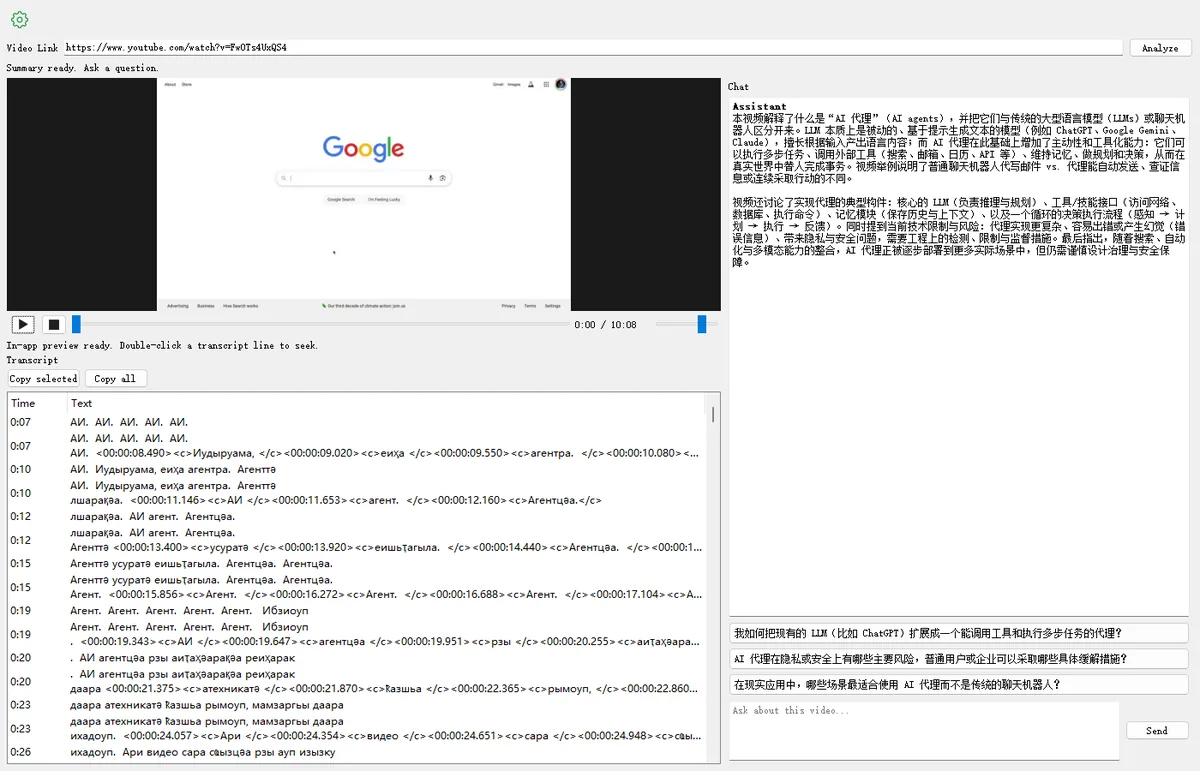
Video Chat lets you paste a YouTube link (or open a finished local download), generate a transcript, preview the video in-app, and ask AI questions with timestamp jumps. This walkthrough uses a sample YouTube video.
Try the web YouTube Chat · Download HiDownload
Open the Video Chat tab
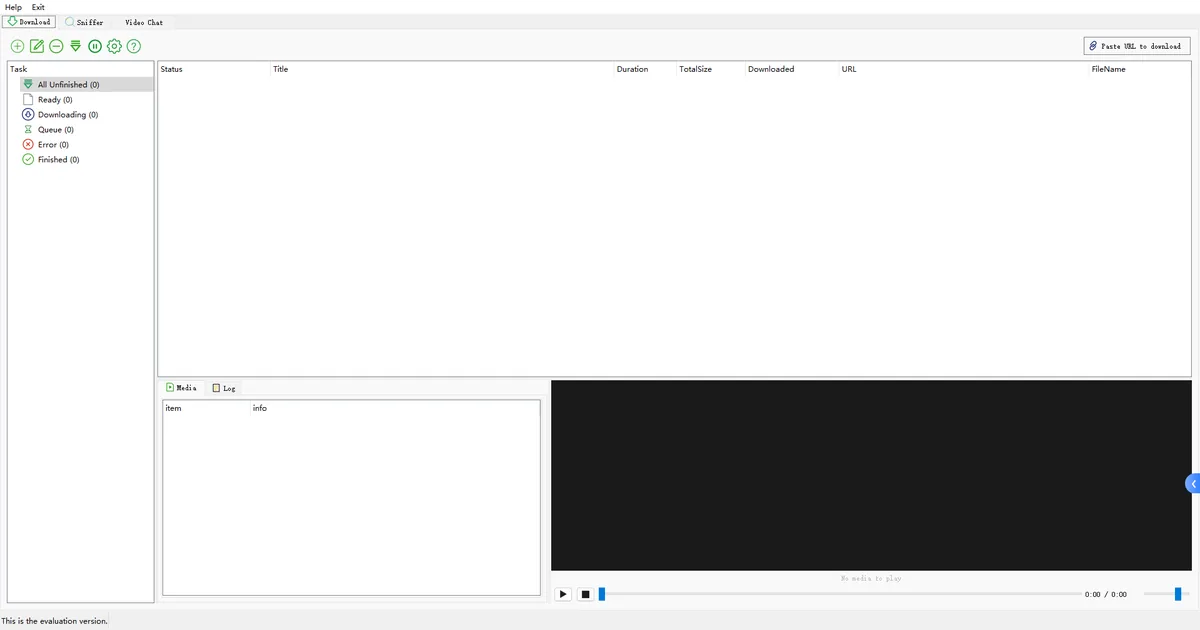
Launch HiDownload (Phoenix). In the main window, click the Video Chat tab next to Download and Sniffer.
Paste a YouTube URL and Analyze
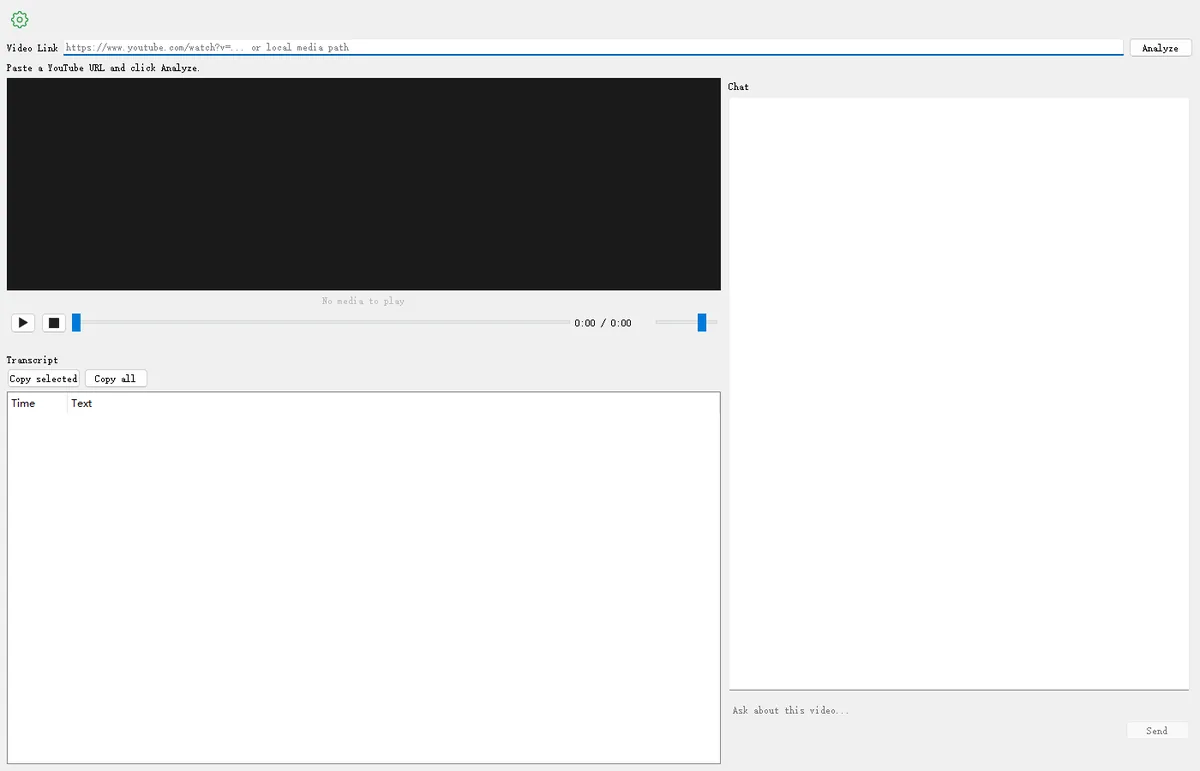
In Video Link, paste a YouTube watch URL, then click Analyze. HiDownload fetches captions / audio and prepares the in-app preview.
- Example used in this guide: https://www.youtube.com/watch?v=FwOTs4UxQS4
- You can also paste a local media path, or use Chat with the video from a finished download (see step 6).
Watch the in-app preview
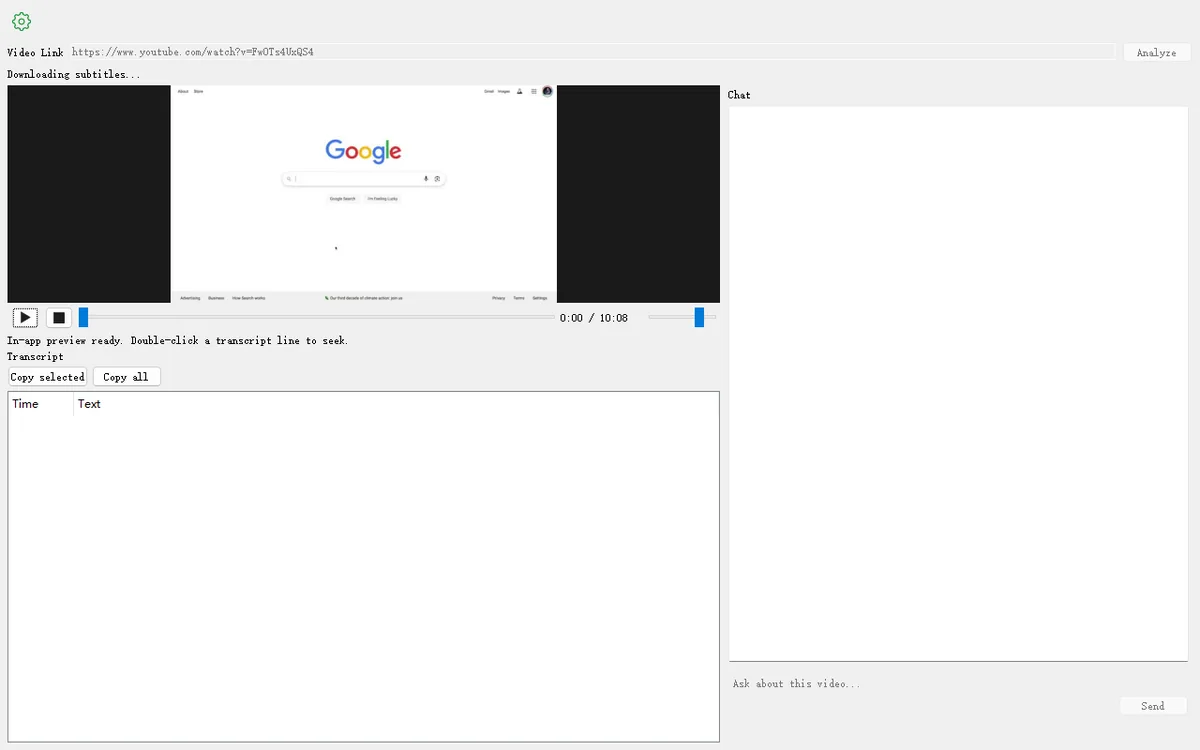
When the preview is ready, the player shows the video. Use play / pause / seek, or wait for the transcript list below the player.
Read the transcript
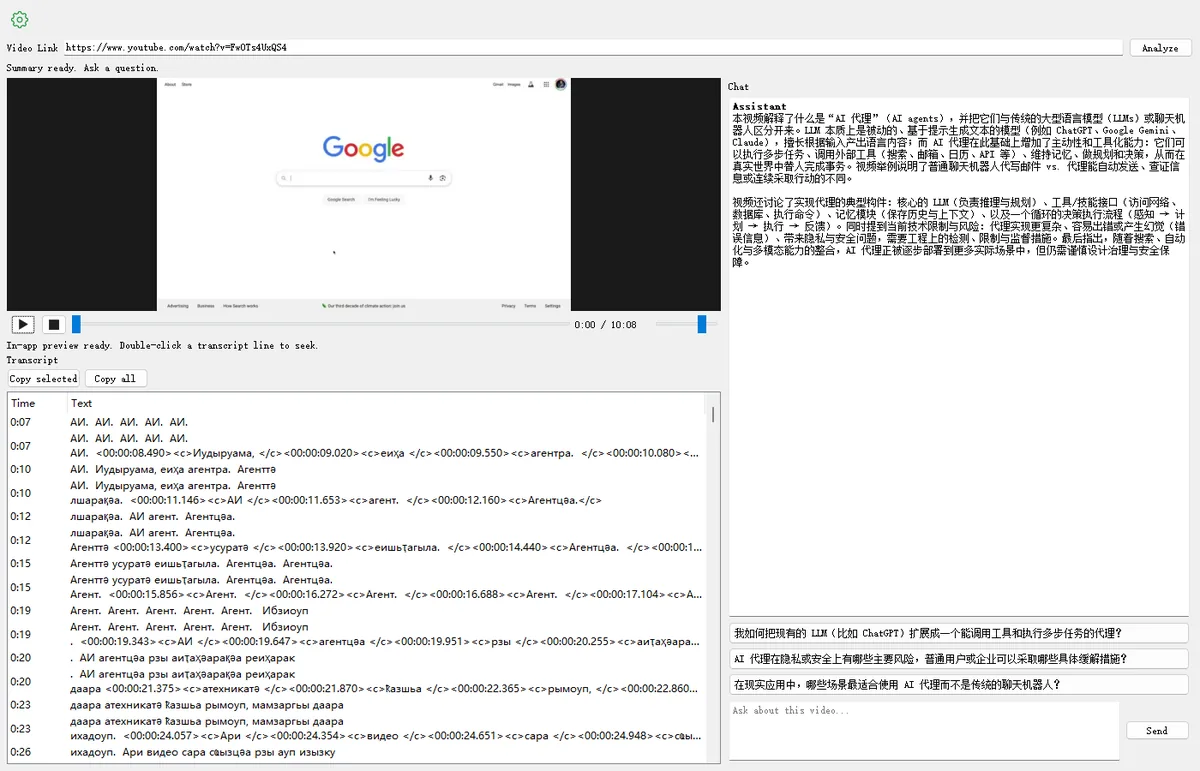
When analysis finishes, the Transcript panel lists time-coded lines. Use Copy selected or Copy all to reuse captions outside the app.
Ask the AI about the video
Type a question in Ask about this video… and click Send. While the model thinks, the Chat title shows thinking…. Answers can include timestamps you can click to seek.
- Open Settings (gear) to choose Server AI or your Custom API (Base URL / API Key / Model).
- Server AI needs a HiDownload account / tokens. Custom API uses your own key.
Chat with a finished local download
After a download finishes on the Download tab, right-click the task and choose Chat with the video. HiDownload switches to Video Chat, loads that file, and reuses sidecar subtitles when available.
Sample video used in this guide
You can follow along with the same YouTube link:
https://www.youtube.com/watch?v=FwOTs4UxQS4